Share your love

Stay Safe. Stay Informed. Stay Free.

Is Discord Down? Check Causes and Find 6 Fixes Here!
If you’re wondering, “Is Discord down?“, you’re not alone. While it’s an essential tool for communication and gaming, its glitches can be very annoying. No worry, whether it’s server issues or device malfunctions, I’ll walk you through quick fixes. And if Discord is inaccessible in your region, here is also an easy solution to unblock it. Keep reading!
Table of Contents
Why Is Discord Down?
Sometimes when you open Discord, the loading circle just keeps spinning. Or even with a stable internet connection, messages won’t send, voice calls won’t connect, and images never finish loading. What’s even more frustrating is not knowing if the problem is on your end: Is Discord really down? Is your home Wi-Fi acting up? Or is some software on your computer interfering?
Before diving into troubleshooting, understanding the common causes of “Discord down” can save you a lot of effort. The scenarios below cover most issues users encounter, such as lag, disconnections, login failures, and voice chat problems.
Cause 1. Server Outage
This is the most common scenario when Discord goes down: you haven’t done anything, yet it suddenly becomes unreachable. Examples include failed logins, disappearing channel lists, or unsynced messages. Typically, this isn’t an issue affecting only you—it’s a widespread failure experienced by many users simultaneously.
Discord handles massive daily traffic, especially during peak hours when server load increases. Overwhelming demand can cause connection failures or high latency. Additionally, internal server bugs or scheduled maintenance may cause brief issues—though these issues are usually resolved quickly, and maintenance is typically announced in advance.

Cause 2. API or Other Service Failure
Discord doesn’t fully crash—sometimes it’s just partially down. You might be able to open the app and see channels, but certain features suddenly stop working, like messages not sending, image/file uploads failing, bots not responding, invite links not opening, or voice issues. It looks like Discord is still running, but key parts are stuck.
This usually happens because Discord relies on APIs and third-party services to deliver specific features. If these components encounter issues, it disrupts Discord’s normal operation.
Cause 3. Network Connection Issues
If your Wi-Fi signal is unstable, your bandwidth is insufficient, or your device has a poor connection to the router, you may encounter issues such as messages taking a long time to send, choppy voice calls, the “RTC Connecting” message persisting, or being unable to hear others in channels.
Discord is more demanding than many apps in terms of network stability, especially for voice and real-time messaging. Even if web browsing is smooth, it doesn’t guarantee the stable, low-latency connection Discord requires.
Cause 4. Client-Side Issues
Sometimes the issue isn’t with Discord’s service end, but with the client you’re using (desktop/mobile). Common symptoms include: blank screens, endless loading, frequent crashes, frozen interfaces, missing notifications, unresponsive voice buttons, and more.
Typically, these problems stem from client errors, cache issues, or incomplete/corrupted installation files, preventing normal startup or server connection.
Cause 5. Version Compatibility Problems
Discord regularly releases new versions to fix bugs and improve performance. If you don’t update your client promptly, you may encounter compatibility issues with the server, leading to connection failures or abnormal functionality. This could even make you think Discord itself is malfunctioning.
Cause 6. Firewall or Security Software Interference
This type of issue often leaves users scratching their heads at first: you’re clearly online, other apps work fine, but Discord just won’t connect. The culprit might be your system firewall or security software silently obstructing Discord’s connections.
6 Ways to Fix Discord Being Down
To address the potential issues causing Discord to go down, we’ve prepared 6 effective solutions for you. You can troubleshoot step by step, starting with Fix 1. Typically, it only takes a few steps to pinpoint the problem.
Fix 1. Check Discord’s Status
When Discord experiences issues, the most time-efficient first step is to confirm if it’s an issue everyone is facing. You can use websites like Downdetector to check real-time feedback, including the number of Discord outage reports, corresponding times, and user comments.
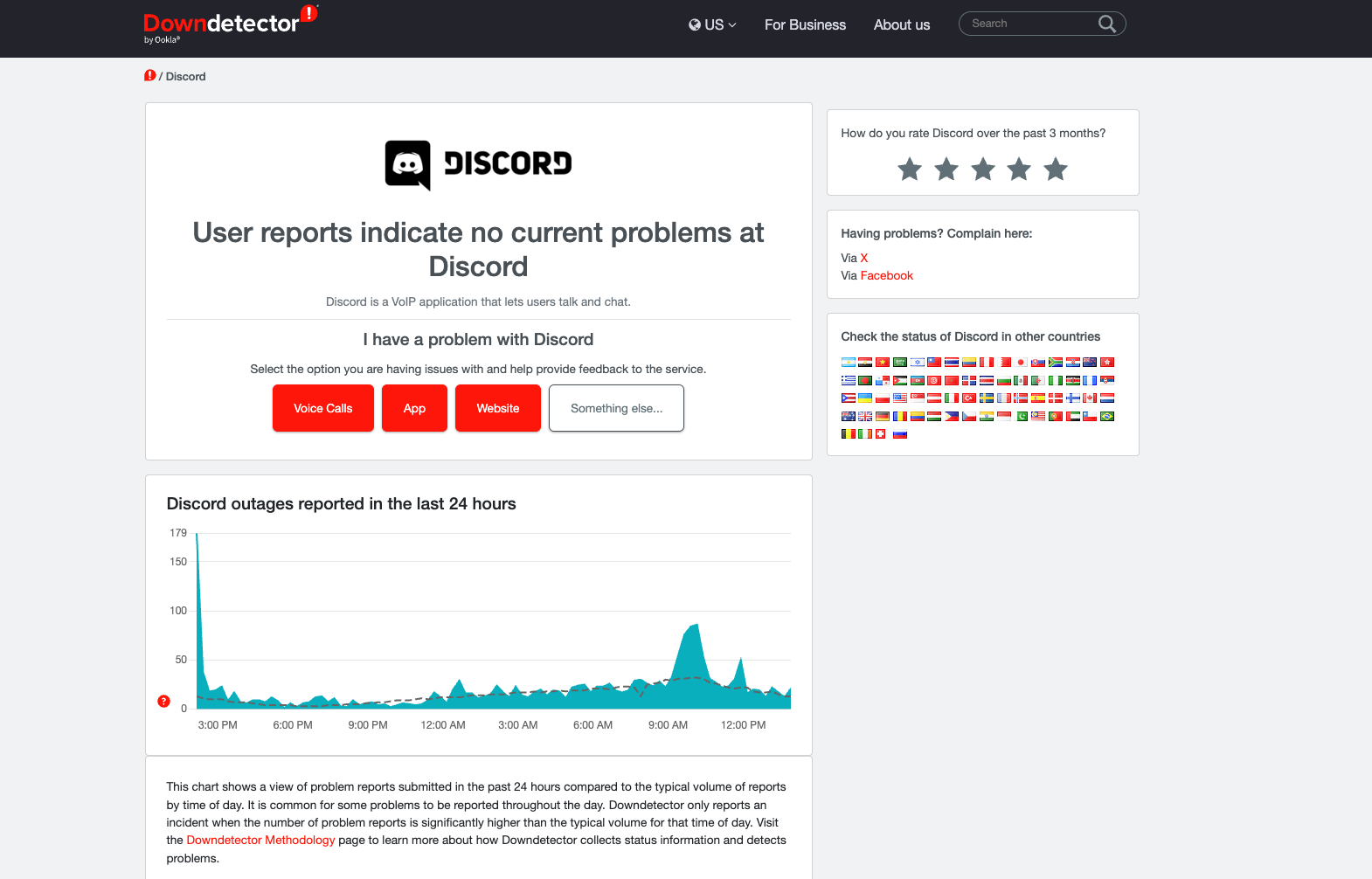
If you see numerous outage reports or a flood of complaints in the comments, the issue is likely on Discord’s servers. In this case, your best course of action is to stop troubleshooting your device and wait patiently for the servers to come back online.
If tools indicate no current problems at Discord, the issue lies elsewhere. Please proceed to Fix 2.
Fix 2. Check All Systems Operational
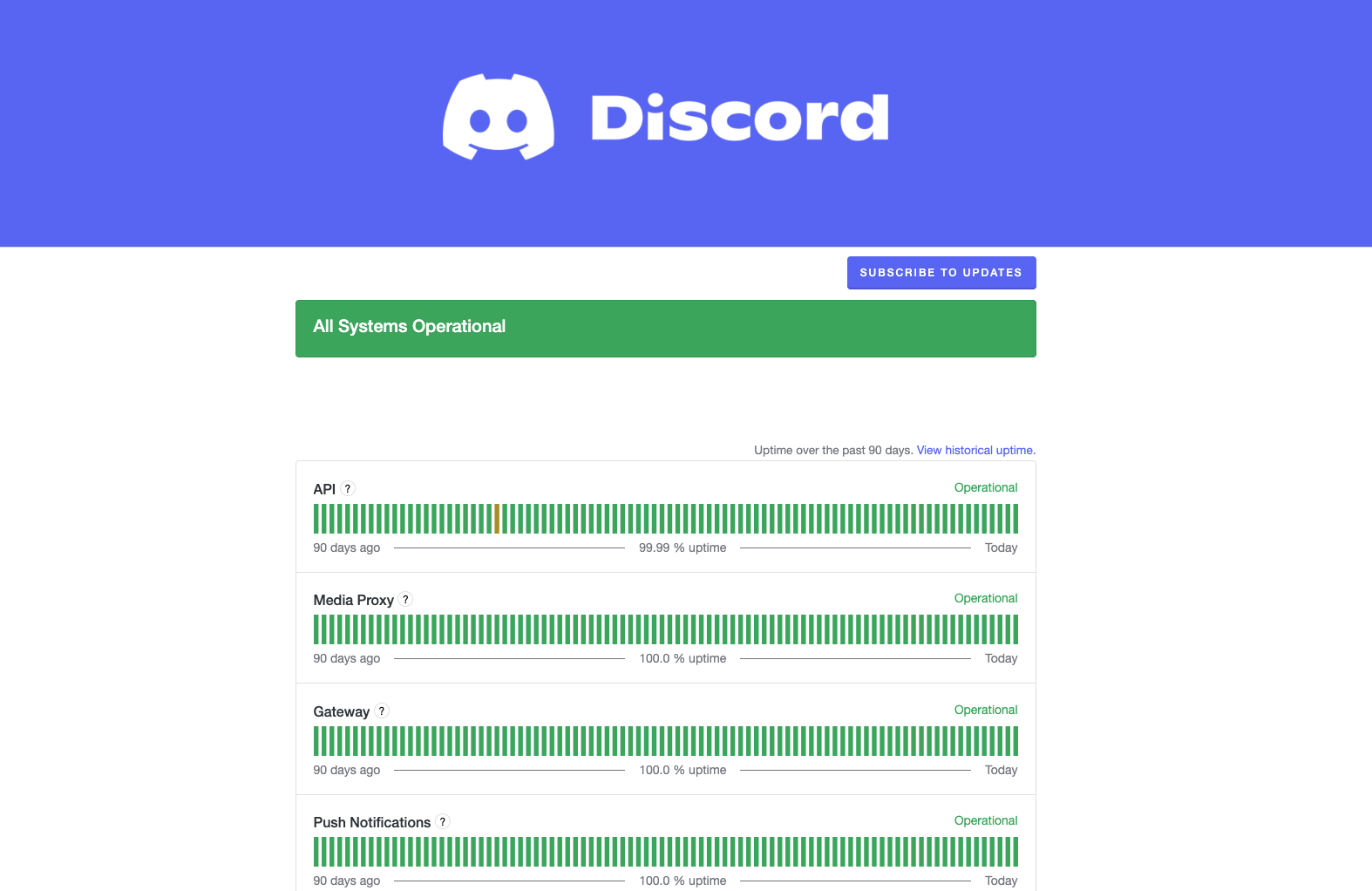
Visit the Discord Status page to view the operational status of all Discord services.
If it displays Degraded Performance, Partial Outage, or Major Outage, this indicates partial service disruptions. At this point, you can verify if it matches the issue you’re experiencing—such as voice service failures or inability to upload images—and wait for official restoration.
If the official status shows All Systems Operational, this likely means the problem originates on your end. Proceed to the next step to fix your own network issues.
Fix 3. Check the Internet Connection of Your Device
When you confirm that Discord’s official status is normal, the next step is to check your network connection.
Follow these steps for quick troubleshooting and resolution:
- Immediately switch to a different network (e.g., use a hotspot instead of Wi-Fi) and reopen Discord.
- If Discord functions normally on the new network, resolve the connection issue by restarting your router or modem, or changing your DNS settings.
If switching networks or restarting doesn’t work, proceed to check your Discord client or firewall settings.
Fix 4. Reinstall and Upgrade Discord
When Discord displays a blank screen, gets stuck loading indefinitely, crashes unexpectedly, or freezes up—giving the impression that the client has malfunctioned—reinstalling is often the most effective solution.
From a user’s perspective, reinstalling offers two key benefits:
- Completely removes potentially corrupted caches, configurations, and outdated files.
- Ensures you’re using the latest version, minimizing strange issues caused by compatibility problems.
Please uninstall Discord directly, then download the app again from the official website or app store. Verify that Discord functions normally.
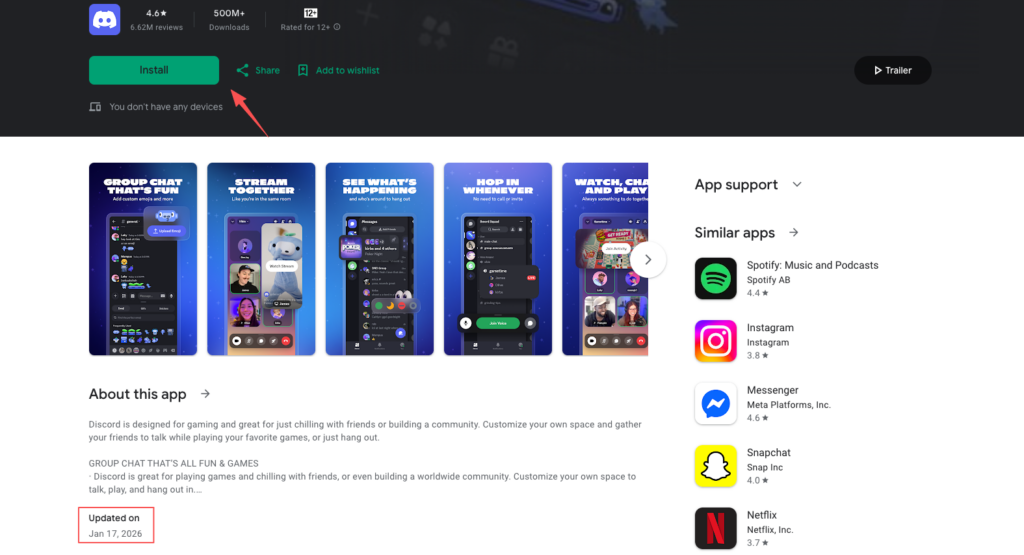
Discord on Google Play Store
Fix 5. Disable or Adjust Firewall and Security Software Settings
If none of the above 4 methods resolve the issue, you should consider whether system settings or security software are blocking Discord’s normal connection.
Here’s what you need to do:
Step 1. Quick Test: Temporarily disable the network protection feature of your firewall or security software (for testing purposes only; do not disable permanently).
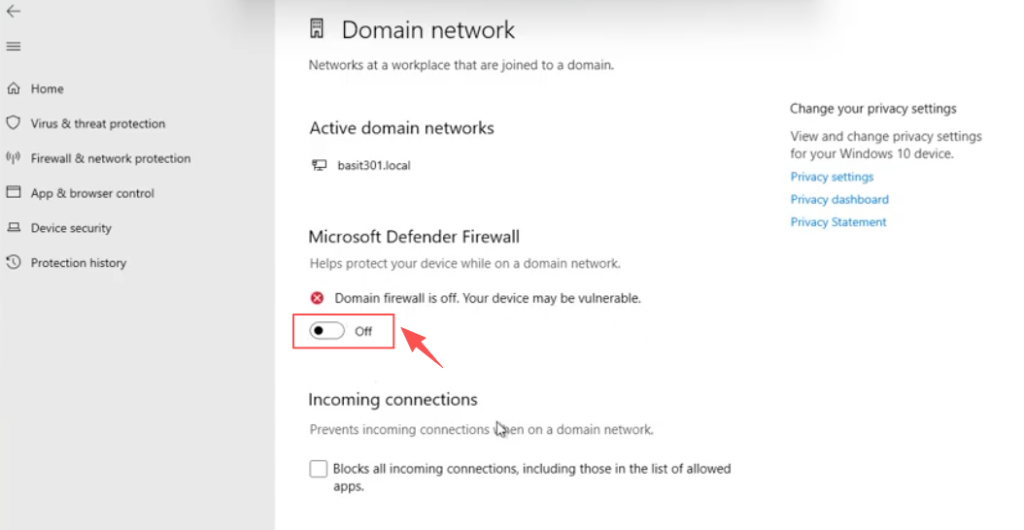
Step 2. Verify results: If Discord functions normally after disabling, this confirms the firewall or security software is blocking Discord. In this case, you need to:
- Add Discord to the firewall/security software’s allow list.
- Depending on the security software’s settings, ensure Discord is not blocked.
Fix 6. Use Discord Web Version
Of course, sometimes you don’t necessarily need to fix the client to resolve the issue—you just want to get back into the channel quickly to continue chatting or gaming. That’s when the web version serves as a practical temporary solution.
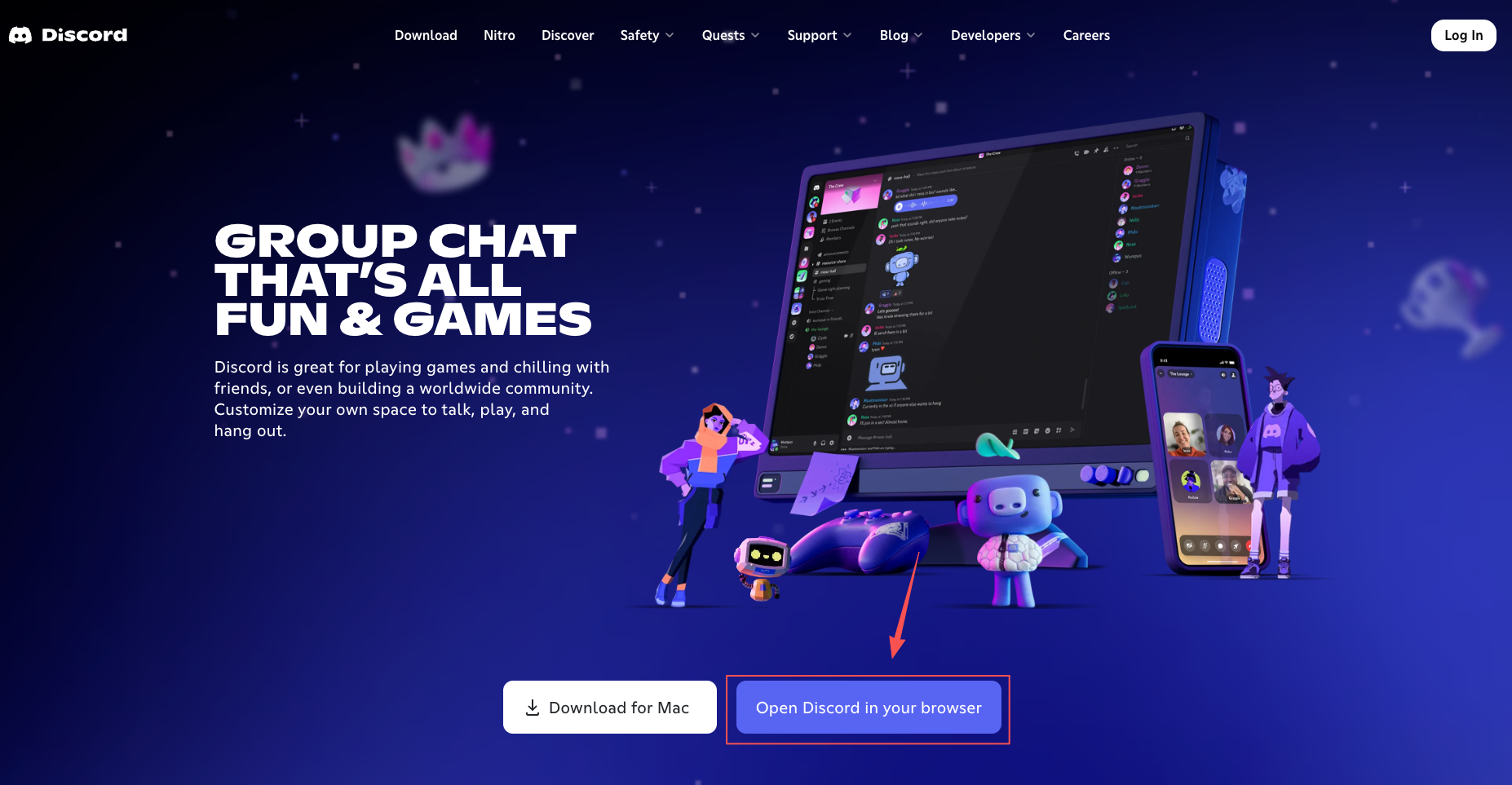
Simply visit the Discord website, choose to open Discord in your browser, log in, and you can continue using it without letting client issues disrupt your experience.
Pro Tip: How to Get Discord Unblocked?
It’s important to note that Discord may also be inaccessible due to network-level restrictions. This typically occurs when companies/schools implement network filters, or when your country/region has blocked Discord.
In such cases, the issue isn’t with Discord’s servers, nor is it a problem with your device or network settings. Instead, network administrators have restricted your access to Discord through IP or firewall policies. Since this blocking is IP-based, all 6 fixes I mentioned above won’t resolve it.
But fear not—a VPN is the key to unlocking the door. By routing your online data through servers in other regions, a VPN assigns you a new IP address. This helps bypass regional or corporate/campus network blocks, allowing you to access and use Discord smoothly.
Of course, beyond helping you get Discord unblocked, a reliable VPN can offer additional benefits:
1. Enhanced Privacy and Security
Using a VPN encrypts your internet connection. This means your voice calls, chat logs, pics shared and other data are transmitted via an encrypted channel while using Discord. This effectively prevents third parties from intercepting or monitoring your online activities and private data.
2. Prevent DDoS Attacks
If you’re an active Discord user and gamer, you may face the risk of DDoS attacks launched by other players. DDoS attacks typically overwhelm a target IP by flooding it with meaningless requests, causing it to crash. A VPN can mask your real IP address, effectively shielding you from such attacks.
3. Reduce Latency and Improve Voice Quality
Some Discord users experience high latency or lag during voice chats. Connecting to a VPN server closer to the Discord server can significantly reduce latency, enhance voice call quality, and optimize your gaming experience.
4. Access More Content and Features
Access to certain Discord servers or channels may be restricted by geographic location, or features like voice or video calls might be disabled in some countries/regions. Connecting to a VPN server in a different region can help you unlock restricted features and enjoy a more complete Discord experience.
In summary, if you encounter issues accessing the app, choosing a reliable VPN to unblock Discord is undoubtedly the fastest and most effective solution. If you have questions about selecting the right VPN, we’ve also written articles on the best VPN recommendations. You can check them out to find a service that suits your usage scenario and lift access restrictions.
- 5 Best Free VPNs for PC | 2026 Newest Top List
- 10 Free VPNs for Android [6 With No Data Cap!]
- 10 Cheapest Monthly VPNs [Monthly Prices Compared]
- 8 Genuine VPN Free Trials 2026 Over “Risk-Free” Hype
Conclusion
Is Discord down? If you run into this again, you won’t be stuck with nothing but panic. You’ll know better: Sometimes Discord itself is having a moment, and waiting it out is actually the easiest solution; Sometimes, the problem is on your end—just follow a couple of steps to get back online; And for network or regional restrictions, just use a VPN to get Discord unblocked. Either way, don’t let one failed connection throw you off—pick the right path, and you’ll be back to enjoying Discord in no time.
FAQs
Is Discord down in Egypt now?
Yes, according to media reports, Egypt abruptly blocked Discord on January 11th, leaving Egyptian users unable to connect normally. However, the sudden surge in registrations for free VPNs also indicates that people in the region have found an important tool to restore their online activities.
Why is Discord not working?
Discord not working could stem from several issues: problems with the Discord server itself, an anomaly in a sub-service, unstable internet connection, client cache or installation file errors, version compatibility causing functionality issues, or simply being blocked by a firewall/security software/corporate or school network. Regardless of the cause, this article provides corresponding solutions—scroll up to read!
How to fix the Discord website not loading?
First, check the official status page or user feedback to verify that Discord isn’t experiencing a widespread outage. If the service is functioning normally, treat the issue as a “browser access failure” and try the following methods sequentially:
Method 1. Log in again using an incognito window, or switch to a different browser.
Method 2. Clear your browser’s cache and cookies.
Method 3. Temporarily disable extensions, especially ad blockers and privacy plugins.
Method 4. Switch networks (Wi-Fi ↔ Hotspot) for quick comparison; if it still fails to load, check DNS and firewall settings.
Method 5. If you confirm the issue is caused by regional/network restrictions, find a trusted VPN, connect to a remote server, and try again.